
Buildroot
Build system setup
Refers to the OpenWrt wiki Build system setup for the package list of other Linux distributions.
Debian/Ubuntu/Mint
sudo apt update
sudo apt install build-essential clang flex bison g++ gawk \
gcc-multilib g++-multilib gettext git libncurses-dev libssl-dev \
rsync swig unzip zlib1g-dev file wget bzip2
Download
Clone the OpenWrt source code
Refers to the OpenWrt wiki Build System Usage.
Run all the above commands as normal user (do not use root).
git clone -b v25.12.6 --single-branch https://github.com/openwrt/openwrt
cd openwrtgit clone -b v24.10.8 --single-branch https://github.com/openwrt/openwrt
cd openwrtAdd the LibreMesh feeds
Copy the defalt OpenWrt repositories file, and add the LibreMesh repositories
TIP
Use master to build the latest LibreMesh code (compatible with openwrt-24.10 or newer)
Use 2024.1 to build the latest LibreMesh release (compatible with openwrt-24.10 and openwrt-23.05)
cp feeds.conf.default feeds.conf
cat << EOF >> feeds.conf
src-git libremesh https://github.com/libremesh/lime-packages.git;master
src-git profiles https://github.com/libremesh/network-profiles.git
EOFcp feeds.conf.default feeds.conf
cat << EOF >> feeds.conf
src-git libremesh https://github.com/libremesh/lime-packages.git;v2024.1
src-git profiles https://github.com/libremesh/network-profiles.git
EOFDownload and install packages from the feeds
scripts/feeds update -a
scripts/feeds install -a
Configure
Using menuconfig
make menuconfig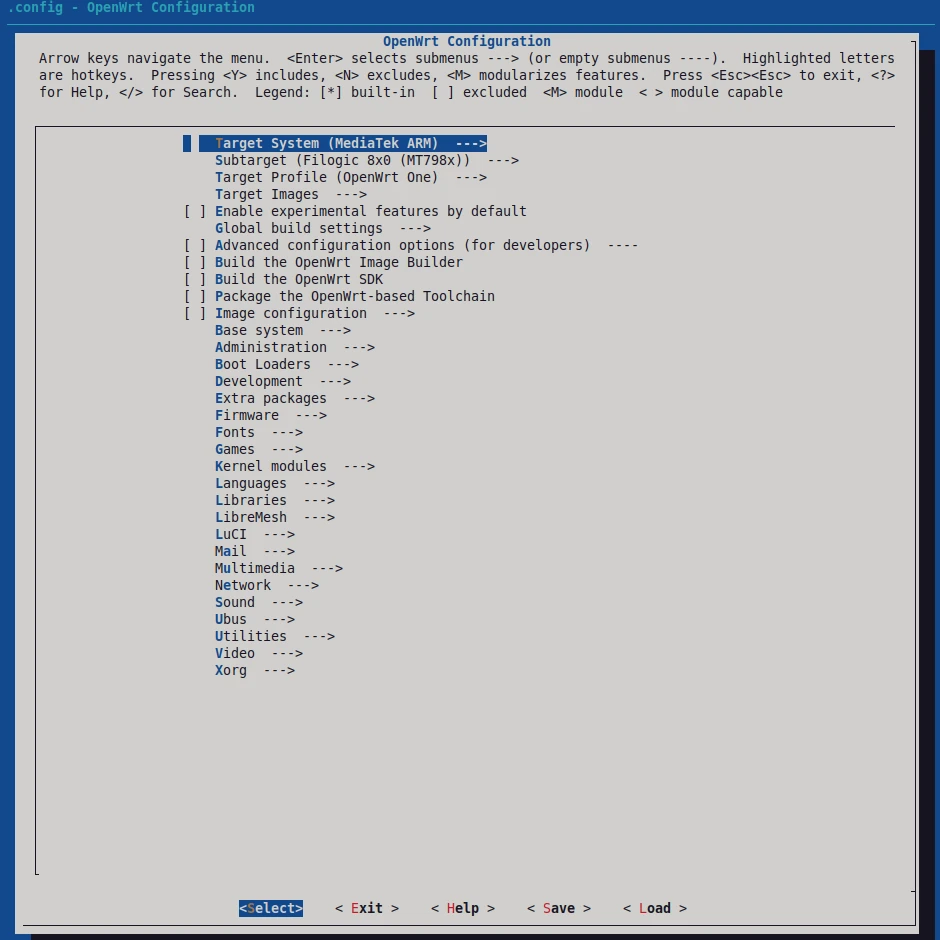
Check out the target, subtarget and profile of your router on OpenWrt Table of Hardware.
Select then:
Target System- defaultMediatek ARMSubtarget- defaultFilogicTarget Profile- defaultOpenWrt One
Packages selection
Default packages
Deselect conflicting Packages:
Base system->< >dnsmasqNetwork->< >odhcpd-ipv6only
By default LibreMesh uses dnsmasq-dhcpv6 instead of the OpenWrt's default dnsmasq and odhcpd-ipv6only.
Deselect erroneous feeds locations:
Image configuration->Separate feed repositories->< >Enable feed libremeshImage configuration->Separate feed repositories->< >Enable feed profiles
OpenWrt packages are available from the download server https://downloads.openwrt.org.
Remove LibreMesh repositories from this list since precompiled packages will not be available from there.
Precompiled LibreMesh packages are available from https://feed.libremesh.org/.
These are installable:
- via package manager directly on the router
- via ImageBuilder during the firmware generation
Saving space and RAM
Optionally, deselect unused packages:
Network->< >pppNetwork->< >ppp-mod-pppoeKernel Modules->Network Support->< >kmod-pppKernel Modules->Network Support->< >kmod-pppoeKernel Modules->Network Support->< >kmod-pppox
Refers to Packages Selection for a list of other optionally deselectable packages.
LibreMesh packages
Select (press space until when an asterisk appears, like <*>) LibreMesh packages:
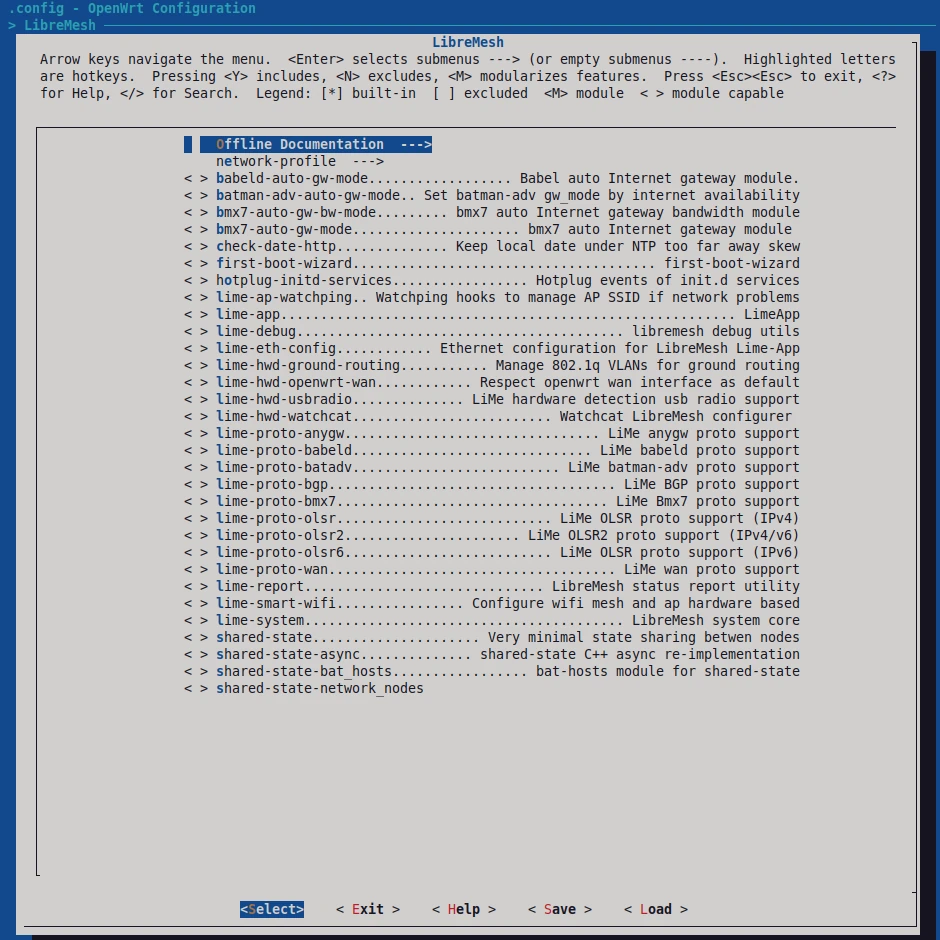
LibreMesh→Offline Documentation→<*>lime-docs-minimal(LibreMesh minimal documentation)LibreMesh→<*>lime-app(LimeApp) (optional)LibreMesh→<*>lime-hwd-openwrt-wan(Respect openwrt wan interface as default)LibreMesh→<*>lime-proto-anygw(LibreMesh anygw proto support)LibreMesh→<*>lime-proto-babeld(LibreMesh babeld proto support)LibreMesh→<*>lime-proto-batadv(LibreMesh batman-adv proto support)LibreMesh→<*>shared-stateLibreMesh→<*>shared-state-async(optional)<*>shared-state-babeld_hosts(babeld-hosts module for shared-state)<*>shared-state-bat_hosts(bat-hosts module for shared-state) (optional)<*>shared-state-nodes_and_links(nodes_and_links module for shared-state)
LibreMesh-><*>babeld-auto-gw-modeLibreMesh-><*>check-date-http(Keep local date under NTP too far away skew) (optional)LibreMesh-><*>Offline Documentation->lime-docs(LibreMesh full documentation) (optional)LibreMesh-><*>lime-debug(libremesh debug utils) (optional)
Optional packages are recommended but not mandatory for a working LibreMesh network.
Consider avoiding to select these packages only if the created image is too large and does not fit in the router memory.
Additionally and optionally, httpS for the web interface can be enabled selecting (beware that the web interace will be shown as not trusted):
Utilities->Encryption-><*>px5g-standalone
If you planning to use encrypted 802.11s mesh, you need to make sure to have the wpad-mesh-*, not wpad-basic-* package, where * is mbedtls, openssl or wolfssl. OpenWrt since branch 23.05 by default uses mbedtls.
Network->WirelessAPD->< >wpad-basic-mbedtlsNetwork->WirelessAPD-><*>wpad-mesh-mbedtls
NOTE
In order to have additional packages, the easiest way is to select them in menuconfig. More packages can be installed afterwards via apk or the older opkg, but some of these require a specific kernel configuration to be in place. This can be achieved following these additional instructions dealing with kernel vermagic Beware that this will increase noticeably the time and storage space required for the compilation.
Save the configuration
Save the configuration and exit.
Additional files
At this stage there is the possibility to include custom files in the compiled firmware image. For this, you will have to create, inside the openwrt/ directory, a files/ directory containing the directory structure and files you want to add. For example, if you want to have a /etc/config/lime-community file you need to do the following:
mkdir -p files/etc/config/
touch files/etc/config/lime-community
and then edit the newly created lime-community file including your custom content. If a file from a package has the same name and path as a file in this directory, it will be overwritten. This is a quick way to include a custom configuration file, without the need to create an online network profile.
Network Profiles
If you local community has a profile in the network-profiles repository, you can select it in:
- LibreMesh -> network-profile -> profile-your_community-your_profile
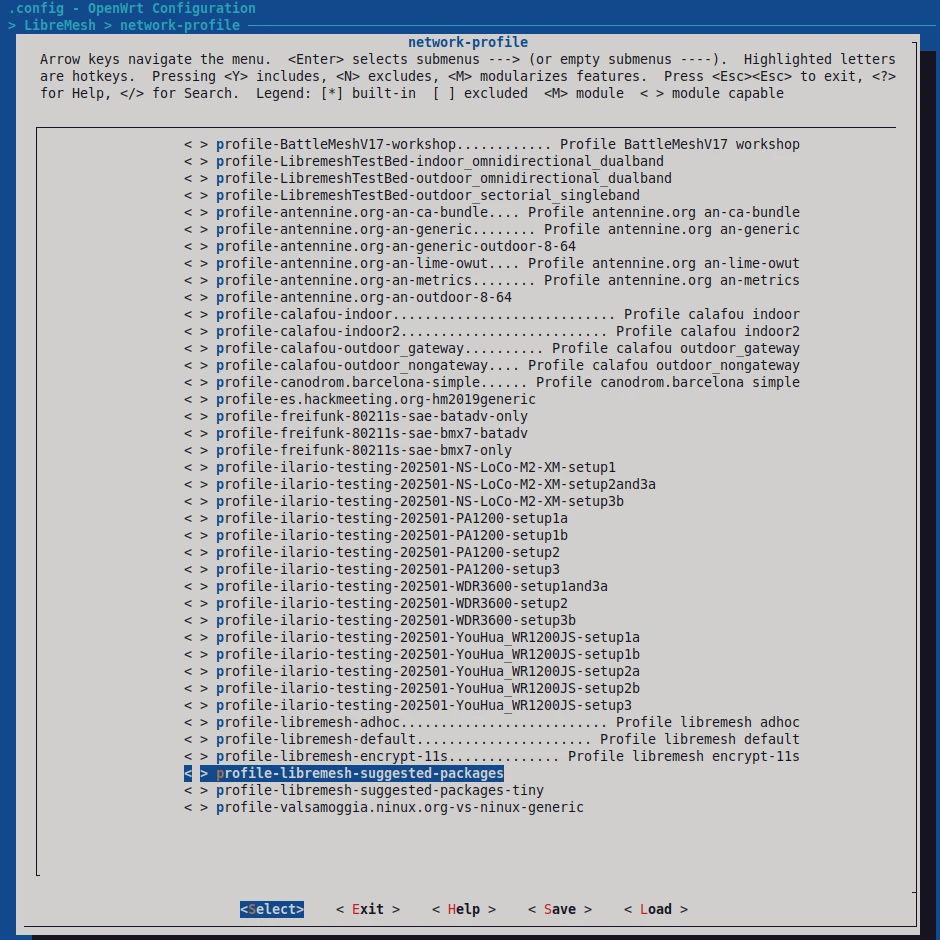
NOTE
Network profiles are the specific configuration from the communities, and are stored in this collective repository, but they can also be kept locally, depending on how every community network manages itself. For more instructions on how to create a profile or how to use a local one, check out the network profiles page.
Using make defconfig
export target-subtarget to env
export TARGET=ath79
export SUBTARGET=generic
configure
Target, subtarget and generic configs
cat << EOF > .config
CONFIG_TARGET_${TARGET}=y
CONFIG_TARGET_${TARGET}_${SUBTARGET}=y
CONFIG_TARGET_ROOTFS_INITRAMFS=y
CONFIG_TARGET_MULTI_PROFILE=y
CONFIG_TARGET_PER_DEVICE_ROOTFS=y
# CONFIG_FEED_libremesh is not set
# CONFIG_FEED_profiles is not set
CONFIG_IMAGEOPT=y
CONFIG_VERSIONOPT=y
CONFIG_KERNEL_BUILD_USER=\"builder\"
CONFIG_KERNEL_BUILD_DOMAIN=\"buildhost\"
# CONFIG_VERSION_CODE_FILENAMES is not set
EOF
make defconfig
Kernel modules (optional)
Optional build all kernel modules to later expose them in an http server Needed to install via the package manager packages that depend on non-defaults kernel modules.
cat << EOF >> .config
CONFIG_DEVEL=y
CONFIG_ALL_KMODS=y
CONFIG_ALL_NONSHARED=y
EOF
make defconfig
Router profile
Selects the router profile based on the compatible string:
echo "CONFIG_TARGET_DEVICE_ath79_generic_DEVICE_librerouter_librerouter-v1=y" >> .config
make defconfig
LibreMesh packages
cat << EOF >> .config
# CONFIG_PACKAGE_dnsmasq is not set
# CONFIG_PACKAGE_odhcpd-ipv6only is not set
# CONFIG_PACKAGE_ppp is not set
# CONFIG_PACKAGE_ppp-mod-pppoe is not set
CONFIG_PACKAGE_kmod-ppp=m
CONFIG_PACKAGE_kmod-pppoe=m
CONFIG_PACKAGE_kmod-pppox=m
CONFIG_PACKAGE_profile-libremesh-suggested-packages=y
EOF
make defconfig
Build Libremesh
Finally, compile the images
make -j$(nproc)Refers to OpenWrt make tips for detailed options.
If everything goes well you should find the produced binaries inside the bin/ directory.
NOTE
If after the compilation you don't see the compiled image in the bin/targets/.../.../ folder, it is possible that your router has such a small flash memory that the aforementioed packages don't fit in it (it can happen also with routers having 8 MB of flash memory when selecting huge packages to be included). In this case, you can remove the .config generated packages list and repeat the packages selection without including lime-app. If the compiled image is still too large, try selecting only lime-proto-anygw, lime-proto-batadv and lime-proto-babeld or following this guide.
Run on QEMU
Refers to the pages under Development guide virtualizing and testing for emulating on your computer with qemu.