
Alignment
The alignment screen is a tool for evaluating and improving the quality of the Wi-Fi link between the base node and one or more nodes within its range. It is used both at installation time and during diagnostics and maintenance.
- Main screen and associated nodes
- Viewing the alignment info of a specific link
- When no possible link is found
- When a link loses signal
Main screen and associated nodes
When you open the screen, this is the main view:
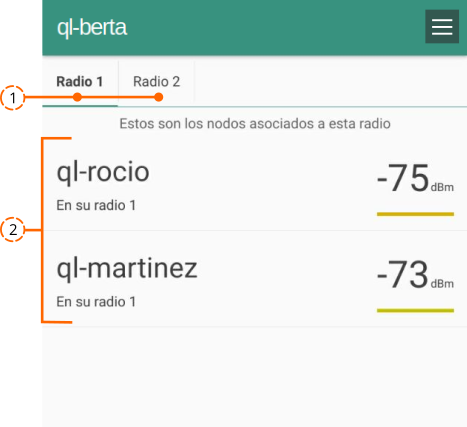
Two tabs, one for each radio of the LibreRouter. The selected tab is highlighted in bold.
- Radio 1. This tab shows the nodes associated with this radio, which corresponds to Antenna 1 of the device.
- Radio 2. This tab shows the nodes associated with this radio, which corresponds to Antenna 2 of the device.
A list of the associated nodes with a brief summary.
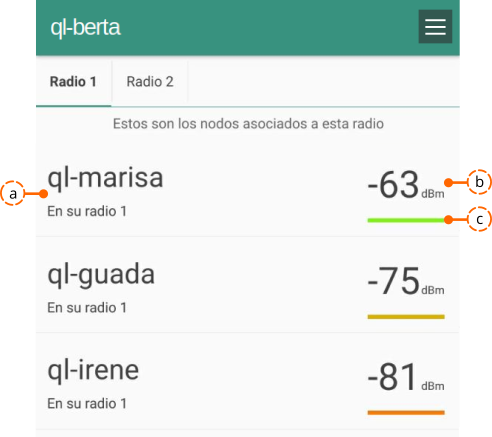
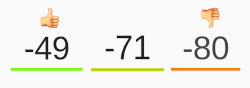
a. The name of the node and the radio through which the base node is communicating with it. b. Link-quality value. A number that quantifies the strength of the signal, expressed in dBm (decibel-milliwatts). If the link is lost at some point, a cross is shown. c. Coloured line. A visual reference for link quality: green means good, yellow/orange means medium, red means low.
Viewing the alignment info of a specific link
Tapping a node's name opens a screen with the details of that link. It is useful when you want to point the base node at a specific neighbour, get more information, and avoid being confused by the other links.
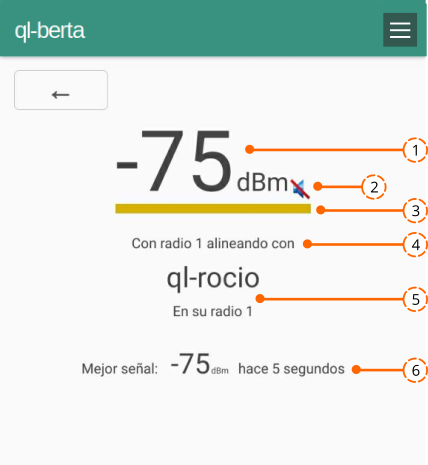
- Link-quality value in dBm (decibel-milliwatts).
- Signal-read-out speaker. A voice reads out the current signal. It is useful while aligning: you can hear the value without looking at the screen. Enable or disable it from the same icon 🔈/🔇.
- Coloured reference line for link quality.
- The radio from which the base node is pointing.
- The name of the node you are aligning against and the radio it is on.
- Best signal. Shows the best alignment achieved, with a seconds reference.
To return to the main alignment screen, use the back button in the upper-left corner:
When no possible link is found
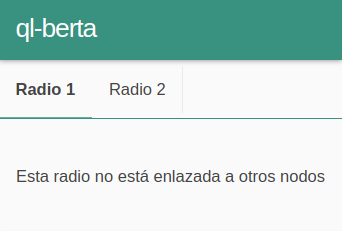
If the base node does not see any signal on one of its radios, the screen reads «This radio is not linked to other nodes»:
When a link loses signal
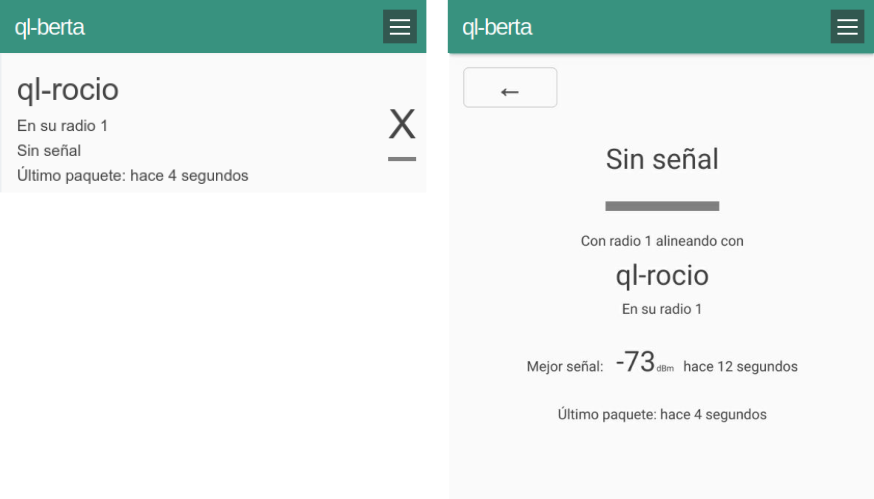
The following information is displayed:
📌 For more information and recommendations, see Aligning antennas of a LibreRouter with LimeApp.
Attribution. Translated from «Alineación» by AlterMundi, licensed under CC BY-SA 4.0.