
Diagnostics
The diagnostics screen provides information and runs several evaluations on the path that the network automatically chooses to connect the base node to the Internet.
There are two options:
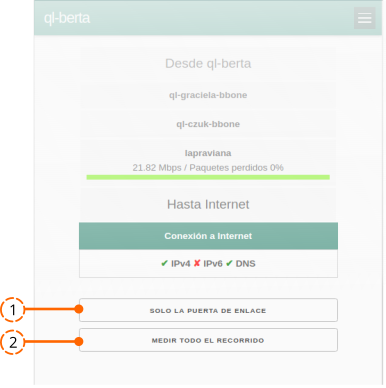
1. Only the gateway
This is the basic diagnostic process that runs automatically when you open the screen. You can repeat it as many times as you want by pressing the button.
It evaluates the bandwidth and the packet loss between the base node and the device that connects to the Internet (the gateway).
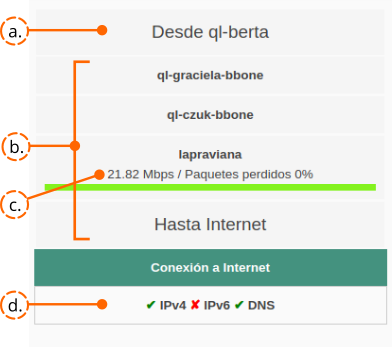
a. The name of the base node from which the evaluation is being run. b. The path that the network chose the last time it connected the base node to the gateway. c. The bandwidth, measured in megabits per second, and the packet-loss percentage, only between the base node and the gateway node (named «lapraviana» in this example). d. Whether the base node has Internet connectivity through IPv4, IPv6, and the DNS service.
2. Measure the whole path
Starts an evaluation of the connectivity between the base node and every intermediate node, including the gateway node and its Internet connection.
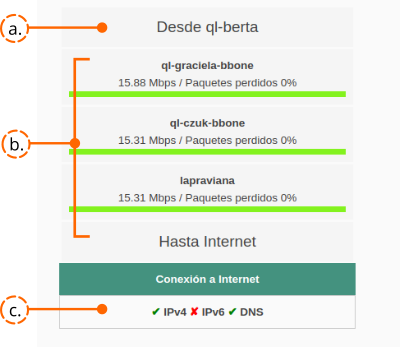
a. The name of the base node from which the evaluation is being run. b. The path that the network chose the last time it connected the base node to the gateway. For every intermediate node, it shows the bandwidth measured between the base node and the intermediate node, plus the packet loss during the test. c. Whether the base node has Internet connectivity through IPv4, IPv6, and the DNS service.
📌 Tips
- While a measurement is running, three animated dots are shown to indicate that you need to wait for the result.

- The coloured bars under the per-node measurements vary in length ↔ according to the bandwidth, and in colour according to the packet loss. They are a graphical reference that, with experience, lets you tell at a glance whether a result is optimal, acceptable, or in clear need of improvement.

- If you need to evaluate or re-evaluate a single link along the path, tap the name of any intermediate node. LimeApp will then show the link-specific information between the base node and the node you tapped.
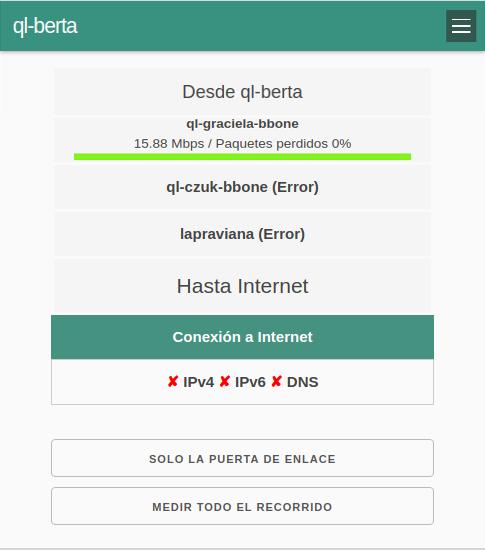
If the network breaks and there is no working path between the base node and the gateway, LimeApp evaluates the last path that did work. When you select the measure the whole path option, the result is striking: the base node evaluates itself against every node of that path that is still in the network. Nodes that are no longer reachable come back with a (Error) message.
Attribution. Translated from «Diagnóstico» by AlterMundi, licensed under CC BY-SA 4.0.