
Firmware
This screen lets you update the LibreRouterOS firmware installed on the device.
Firmware is the collection of small programs (software) that tell the device what to do and how. Without firmware, the device does nothing useful. For LibreRouter to keep working, there is an ongoing development effort behind it.
LibreRouterOS is based on LibreMesh, OpenWrt, and other non-proprietary software components such as LimeApp. The project considers it important to accompany communities in co-creating their free, community, and decentralised networks, also through technical and development decisions. To learn more, visit the Free Design section of the LibreRouter project website.
Updating the firmware of a LibreRouter
There are two options:
- One-click safe update.
- Choose a firmware image from your device.
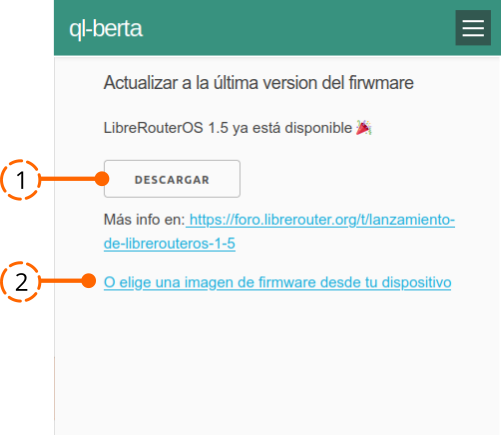
Things to keep in mind
- Access to this tool requires the shared administration password.
- When a new update is available, a notification appears at the top of the screen announcing it and leading to the same screens 👇
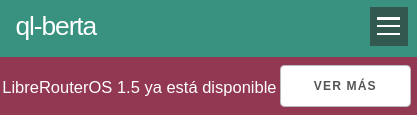
- The update is performed safely (SafeUpgrade), and in case something breaks, the previous configuration is restored automatically.
1. One-click safe update
Step-by-step instructions
Press the Download button.
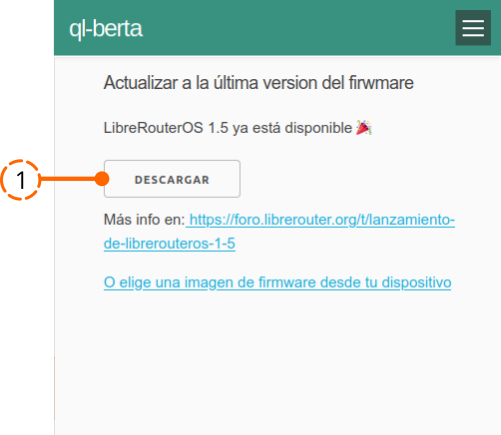
Wait for the new LibreRouterOS firmware image to download. The button stays disabled until the process finishes.
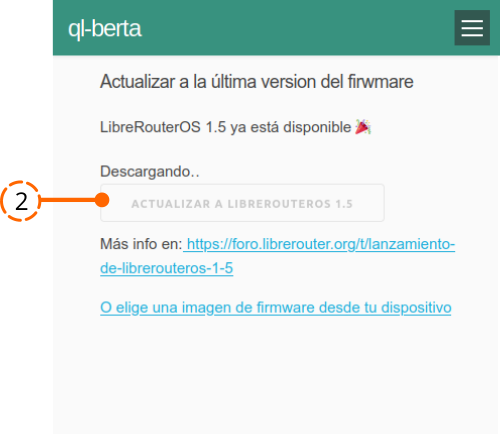
Press Upgrade to LibreRouterOS 1.5.
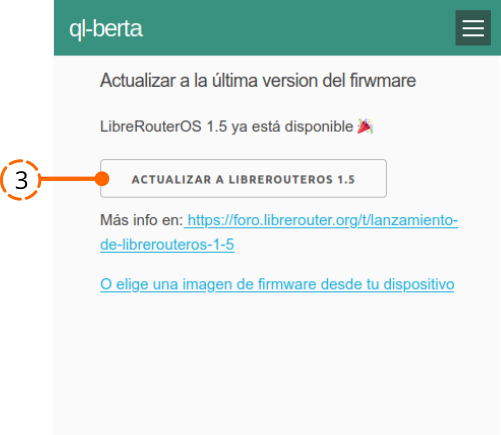
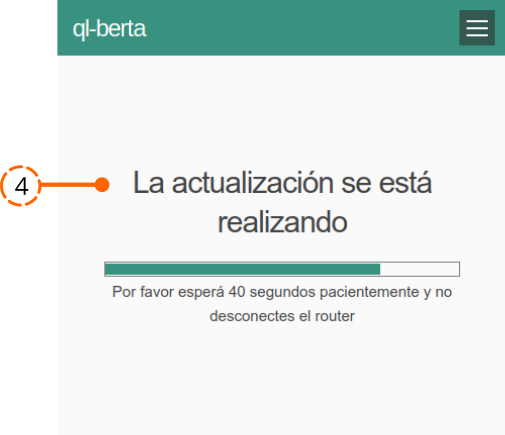
The upgrade starts. Wait until it finishes without disconnecting the LibreRouter. The estimated time is about 3 minutes.
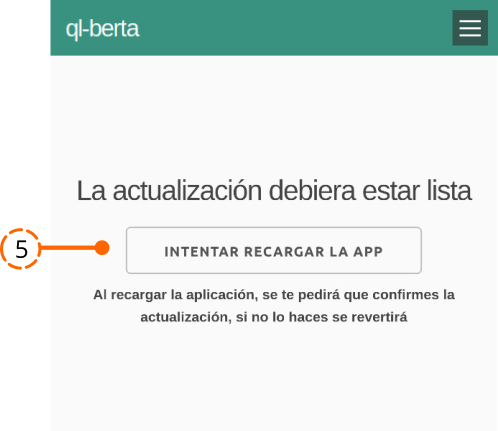
The upgrade is complete. LimeApp needs to be reloaded. If it reloads correctly, the process is going well 🙂
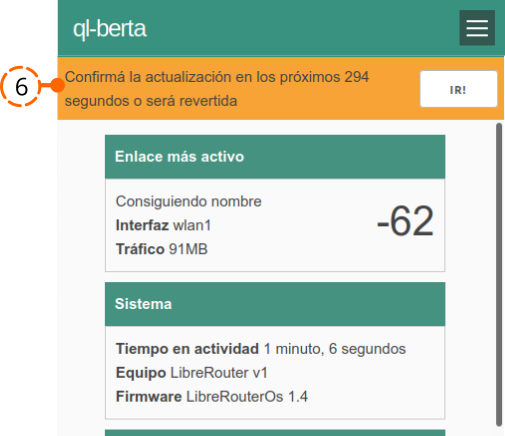
The main LimeApp screen appears with the notification at the top. If everything looks good, confirm the upgrade. First press the Go button.
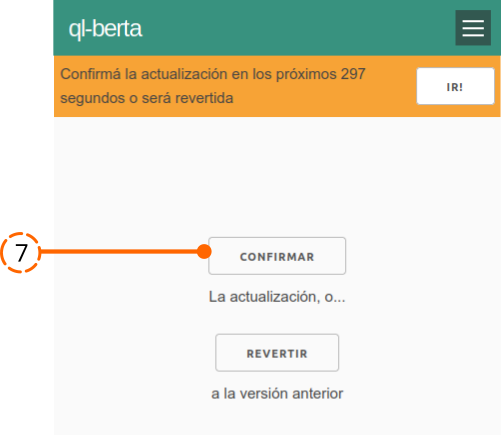
Then press Confirm.
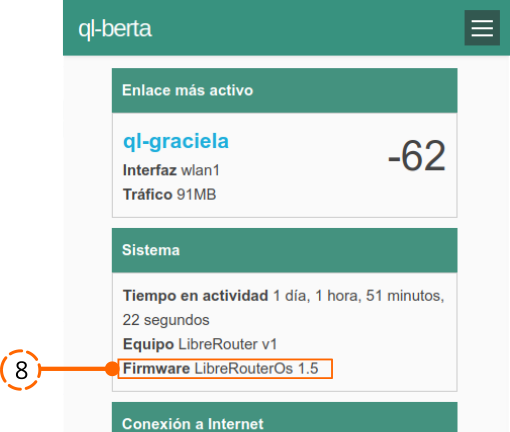
The firmware of the LibreRouter has been updated successfully. To verify, open the Status screen of LimeApp. The firmware-version field should now read LibreRouterOS 1.5.
2. Choose a firmware image from your device
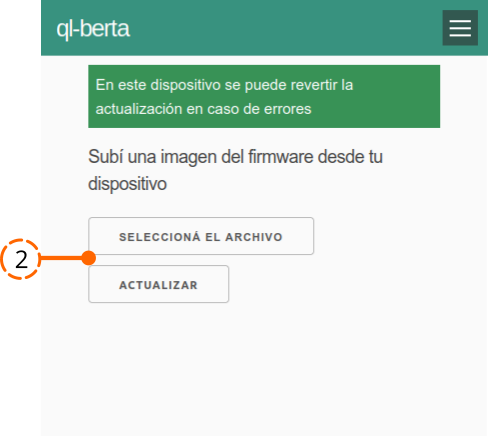
Use this option to upgrade from a firmware file that you have already downloaded.
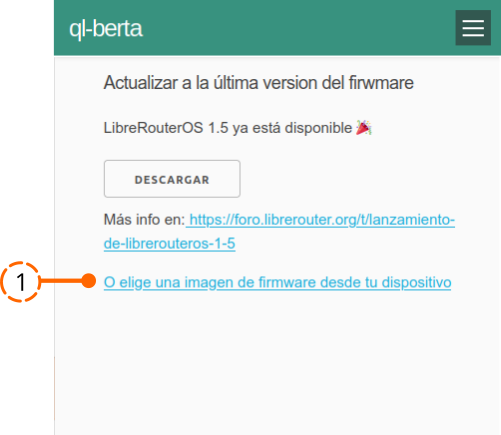
Choose the «Choose a firmware image from your device» option.
Once the file is uploaded, press Upgrade. The rest of the process is the same as described above.
Something went wrong 🙁
- If LimeApp does not reload or something unexpected happens, the process is automatically reverted. Wait 10 minutes.
- If the update needs to be reverted, you can do so at step 7 above.
More to keep in mind
- Other options and use cases exist. The LibreRouter forum is the place to ask, request help, and learn more. Everyone is welcome to participate!
- A companion document with instructions, recommendations, and procedures for updating community networks is being prepared. Coming soon!
Attribution. Translated from «Firmware» by AlterMundi, licensed under CC BY-SA 4.0.