
A tour of the menu
The menu icon ☰ sits in the upper-right corner. From there you can reach every screen and tool available in LimeApp. Let's go through them!
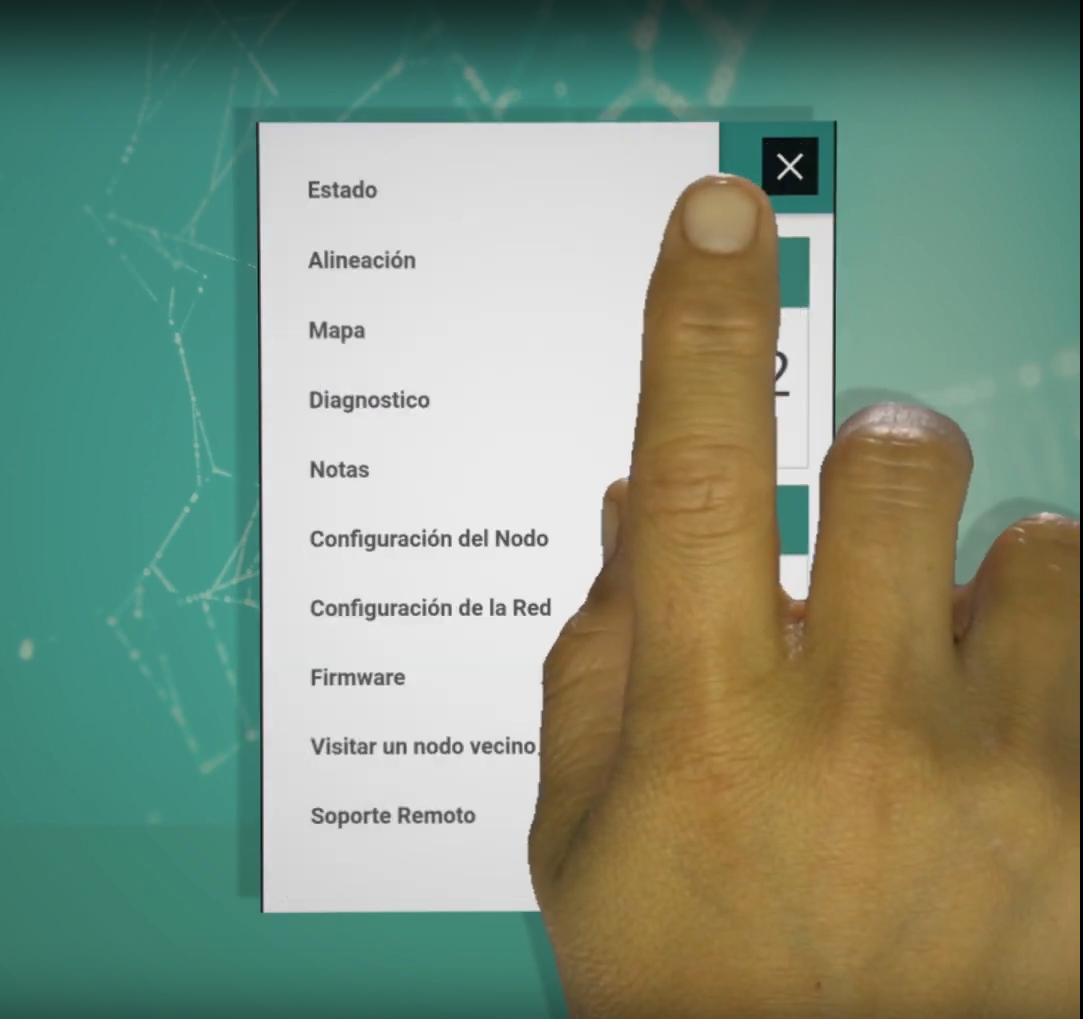
Status
The status screen shows general information about the node and the link.
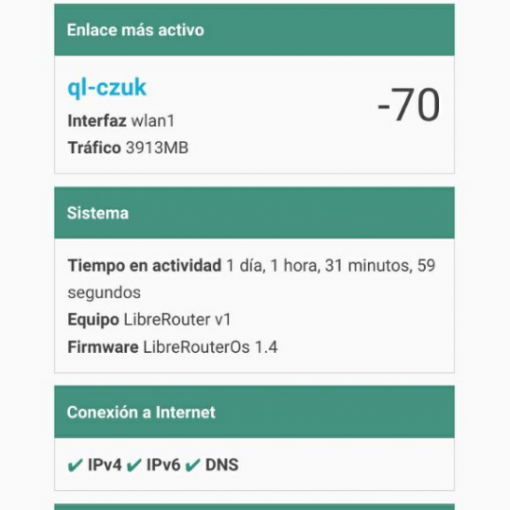
→ See the Status page for details.
Alignment
A tool for evaluating and measuring the quality of the links.
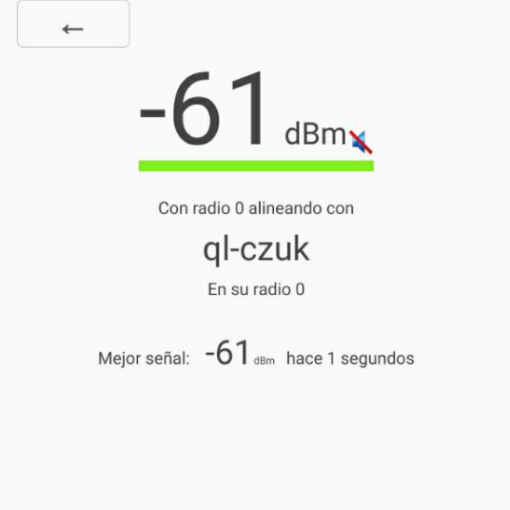
→ See the Alignment page for details.
Map
Renders the network that the base node belongs to, with both nodes and links.
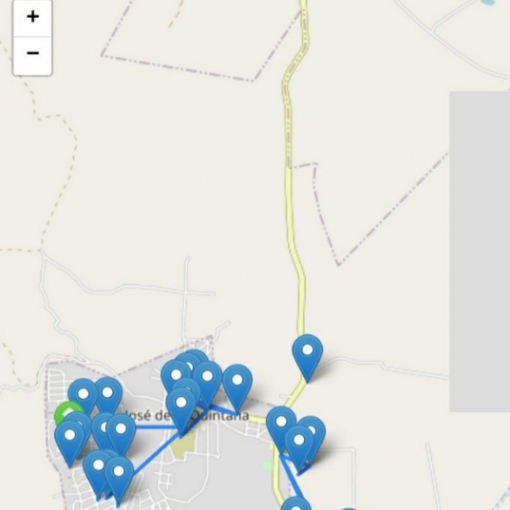
→ See the Map page for details.
Diagnostics
Performs several evaluations of the path that the network automatically chooses to connect the base node to the Internet.
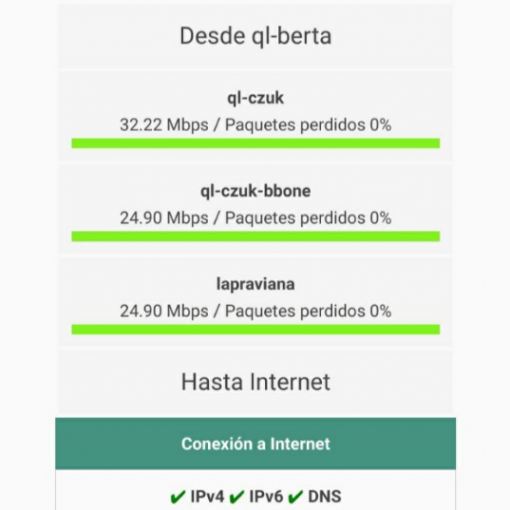
→ See the Diagnostics page for details.
Notes
Lets you write and read information about the node or anything else the community wants to keep there.
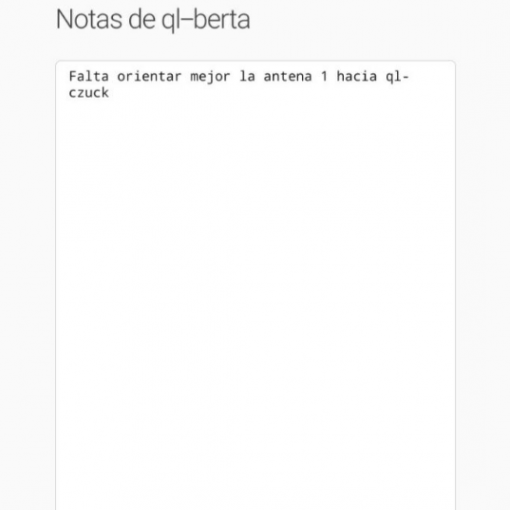
→ See the Notes page for details.
Node configuration
Lets you edit the node's name.
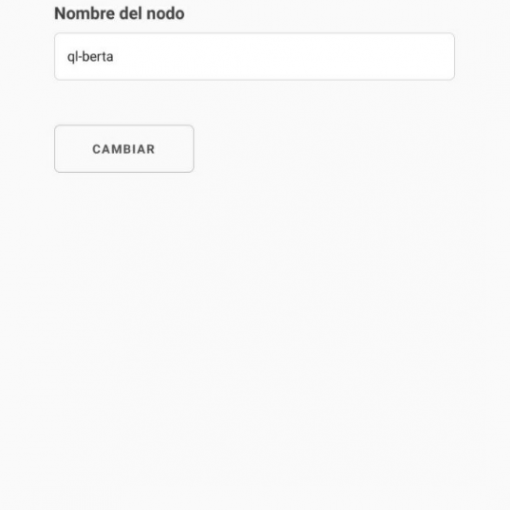
→ See the Node configuration page for details.
Network configuration
Lets you set a shared administration password for the network.
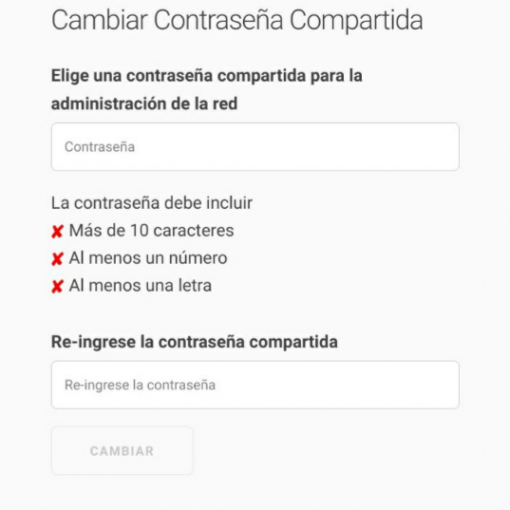
→ See the Network configuration page for details.
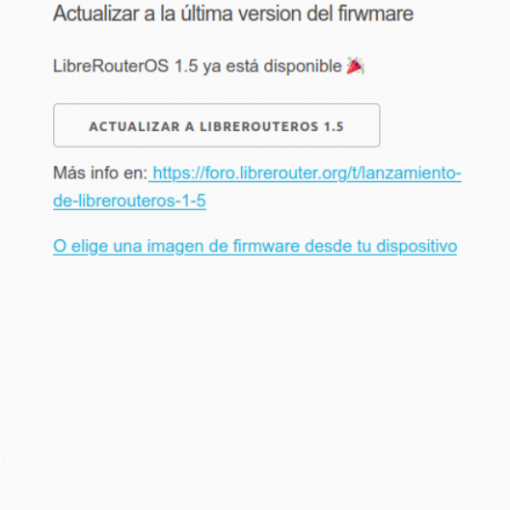
Firmware
Lets you update the firmware version of the node.
→ See the Firmware page for details.
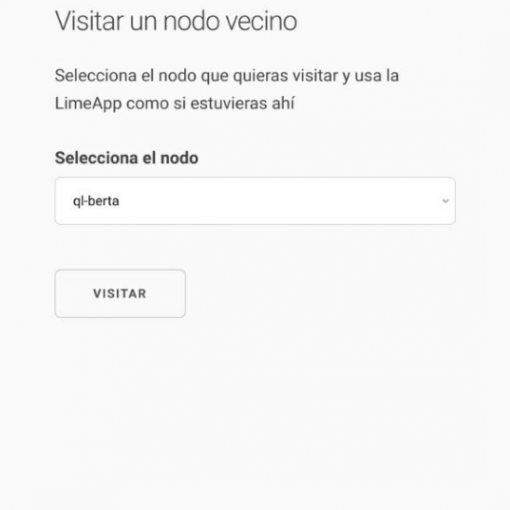
Visit neighbor node
Lets you reach the information of another node in the network.
→ See the Visit neighbor node page for details.
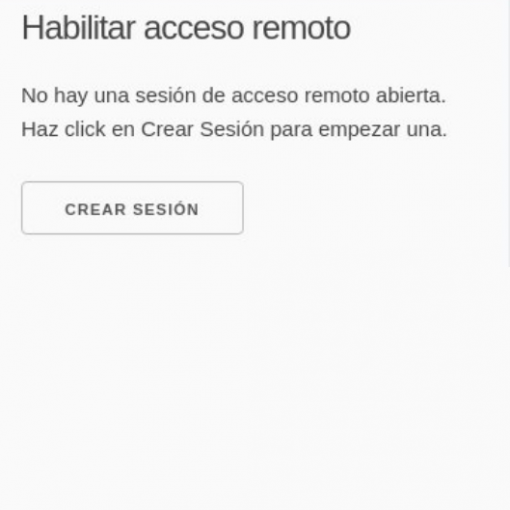
Remote support
Gives easy access to the node even when you are outside the local network.
→ See the Remote support page for details.
Attribution. Translated from «Un paseo por el Menú 1.4» by AlterMundi, licensed under CC BY-SA 4.0.